Sign Document with Digital Signature Leave feedback
On this page
In today’s digital age, ensuring the authenticity and integrity of electronic documents is crucial. One highly effective method for achieving this is through the use of digital signatures. In this guide, we will explore the world of digital signatures, explaining what they are, why they are essential, and how you can utilize GroupDocs.Signature for Python via .NET to seamlessly eSign your documents.
A digital signature is a cryptographic mechanism for verifying the authenticity and integrity of electronic documents. It provides strong assurance that the document originated from a known sender and has not been tampered with by unauthorized sources. Digital signatures are typically represented by certificates containing private (for signing) and public (for verification) keys. Various public key cryptography standards, such as PFX format, are commonly used for this purpose. The picture below shows how a digital signature looks on a PDF document page by default.
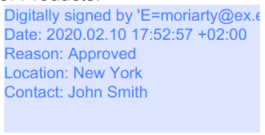
- Enhanced Security: Digital signatures provide a higher level of document security, making it extremely challenging for unauthorized parties to alter the content.
- Authentication: They offer a reliable way to verify the identity of the document sender.
- Non-repudiation: Digital signatures prevent senders from denying the authenticity of the signed document.
GroupDocs.Signature for Python via .NET supports the creation of digital signatures based on existing PFX certificates. To specify various settings the library provides the DigitalSignOptions class that allows adjusting digital signature properties in the document:
- The certificate_file_path or certificate_stream properties define the certificate source;
- The password property specifies the certificate password;
- The contact, reason and location properties specify additional descriptions;
- The visible property specifies whether the signature should be visible on the document page or not;
- The xad_es_type property defines whether the e-signature should be of an XML Advanced Electronic Signature type (supported for spreadsheet documents).
Expired and not-yet-valid certificates are rejected: sign raises GroupDocsSignatureException with a message such as “The signing certificate expired on …”. To sign with such a certificate anyway, set allow_expired or allow_not_yet_valid to True.
- Install the GroupDocs.Signature package using pip:
pip install groupdocs-signature-net
- Create a new instance of the Signature class and pass the source document path as a constructor parameter.
- Instantiate the DigitalSignOptions object with the required certificate and its password.
- Call the Sign method of the Signature class instance and pass the DigitalSignOptions to it.
The example below shows how to sign a PDF document with a digital e-signature using Python. We can sign any other supported document format in the same way.
from groupdocs.signature import Signature
from groupdocs.signature.options import DigitalSignOptions

def sign_with_digital_signature():
    with Signature("sample.pdf") as signature:
        # Create digital signature options with the certificate file
        options = DigitalSignOptions("certificate.pfx")

        # Set the certificate password
        options.password = "1234567890"

        # Optional: an image that shows the signature on the page
        options.image_file_path = "signature.jpg"

        # Set signature position
        options.left = 100
        options.top = 400

        # Sign the document and save the result
        result = signature.sign("signed_digital.pdf", options)
        print(f"Signed with {len(result.succeeded)} digital signature(s)")

if __name__ == "__main__":
    sign_with_digital_signature()
sample.pdf is the sample file used in this example. Click here to download it.
certificate.pfx is the sample certificate used in this example (password 1234567890). Click here to download it.
signature.jpg is the sample file used in this example. Click here to download it.
Binary file (PDF, 616 KB)
You can customize the digital signature further with additional options: the signature’s size on the page, and the contact, reason and location stored in it:
from groupdocs.signature import Signature
from groupdocs.signature.options import DigitalSignOptions

def sign_with_digital_signature_advanced():
    with Signature("sample.pdf") as signature:
        # Pass the certificate and the appearance image to the constructor
        options = DigitalSignOptions("certificate.pfx", "signature.jpg")
        options.password = "1234567890"

        # Show the signature on the page, at this position and size
        options.visible = True
        options.left = 100
        options.top = 400
        options.width = 200
        options.height = 100

        # Information stored in the signature
        options.contact = "John Smith"
        options.reason = "Approval"
        options.location = "New York"

        result = signature.sign("signed_digital_advanced.pdf", options)
        print(f"Signed with {len(result.succeeded)} digital signature(s)")

if __name__ == "__main__":
    sign_with_digital_signature_advanced()
sample.pdf is the sample file used in this example. Click here to download it.
certificate.pfx is the sample certificate used in this example (password 1234567890). Click here to download it.
signature.jpg is the sample file used in this example. Click here to download it.
Binary file (PDF, 616 KB)
You can also load the certificate from a stream. Keep the stream open until sign returns:
from groupdocs.signature import Signature
from groupdocs.signature.options import DigitalSignOptions

def sign_with_certificate_from_stream():
    with Signature("sample.pdf") as signature:
        # Load the certificate from a stream
        with open("certificate.pfx", "rb") as certificate_stream:
            options = DigitalSignOptions(certificate_stream)
            options.password = "1234567890"

            # Set signature position and size
            options.left = 100
            options.top = 400
            options.width = 200
            options.height = 60

            result = signature.sign("signed_digital_stream.pdf", options)
            print(f"Signed with {len(result.succeeded)} digital signature(s)")

if __name__ == "__main__":
    sign_with_certificate_from_stream()
sample.pdf is the sample file used in this example. Click here to download it.
certificate.pfx is the sample certificate used in this example (password 1234567890). Click here to download it.
Binary file (PDF, 612 KB)
This guide demonstrates how to use GroupDocs.Signature for Python via .NET to sign documents with digital signatures. It explains how to load documents, configure certificate-based signatures, and save signed files securely. Advanced features, such as the signature appearance and the information stored in the signature, are also covered. Refer to related resources for additional details on digital signing workflows.
You may easily run the code above and see the feature in action in our GitHub examples:
Along with the full-featured Python library, we provide simple but powerful free online apps.
To sign PDF, Word, Excel, PowerPoint, and other documents you can use the online apps from the GroupDocs.Signature App Product Family.
Was this page helpful?
Any additional feedback you'd like to share with us?
Please tell us how we can improve this page.
Thank you for your feedback!
We value your opinion. Your feedback will help us improve our documentation.

