eSign Document with QR Code Signature Leave feedback
On this page
QR code (or Quick Response code) is a sort of two-dimensional barcode that consists of black squares arranged in a square grid on a white background. QR codes can be read by smartphone cameras or specialized devices that are dedicated to QR reading - hand-held scanners, handy terminals, desktop scanners, embedded scanners, and so on. Usually QR codes contain data that points to a website or application, emails, or phone numbers, product identifiers, or trackers. Therefore, the scope of QR code applications extends from general marketing and item identification to document management.
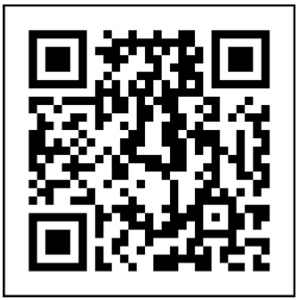
GroupDocs.Signature for Python via .NET can sign the documents with QR codes of the following types.
| Aztec code | DataMatrix code | GS1 DataMatrix | GS1 QR code | QR | |
|---|---|---|---|---|---|
| Application | * transport and ticketing; * in airline industry for electronic boarding passes; * in rail for tickets sold online and printed out by customers or displayed on mobile phone screens. Code is scanned by a handheld scanner by on-train staff or at the turnstile to validate the ticket. * medicine - patient identification wristbands and labels for unit-of-use medications etc. |
* printed media such as labels and letters; * industrial engineering purposes - marking components etc; * food industry - to prevent food products being packaged and dated incorrectly; |
Used in * Healthcare; * Government; * Industrial. Encodes item additional information, such as: * weight; * expiration date; * batch number; * date of manufacture; * etc. |
Used in marketing to encode additional item information on the package | Widely used in automotive industry and mobile applications. Useful for encoding large amount of data characters and specific URLs. |
| Length | 3067 alphanumeric, 3832 numeric, 1914 bytes |
2335 alphanumeric, 3116 numeric |
2335 alphanumeric, 3116 numeric, 1556 bytes |
7089 alphanumeric, 4296 numeric, 2953 bytes |
4296 alphanumeric, 7089 numeric, 2953 bytes |
| Example | 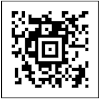 |
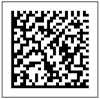 |
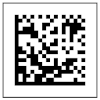 |
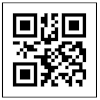 |
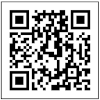 |
When adding QR code electronic signature to a document, the main settings are the text to be encoded and the type of the QR code which should be specified via the QrCodeSignOptions class.
Here are the steps to eSign a document with the QR code signature:
-
Create a new instance of the Signature class and pass the source document path as a constructor parameter.
-
Instantiate the QrCodeSignOptions object according to your requirements and specify the encode_type and text properties.
-
Call the sign method of the Signature class instance and pass the QrCodeSignOptions to it.
The code snippet below demonstrates how to sign a PDF document with the QR code signature using Python:
from groupdocs.signature import Signature
from groupdocs.signature.options import QrCodeSignOptions
from groupdocs.signature.domain import QrCodeTypes

def sign_with_qr_code_signature():
    with Signature("sample.pdf") as signature:
        # Create QR code signature options with the text to encode
        options = QrCodeSignOptions("John Smith")

        # Set the QR code type
        options.encode_type = QrCodeTypes.QR

        # Set QR code position and size
        options.left = 100
        options.top = 400
        options.width = 100
        options.height = 100

        # Sign the document and save the result
        result = signature.sign("signed_qr_code.pdf", options)
        print(f"Signed with {len(result.succeeded)} QR code signature(s)")

if __name__ == "__main__":
    sign_with_qr_code_signature()
sample.pdf is the sample file used in this example. Click here to download it.
Binary file (PDF, 57 KB)
The other QR code types from the table above are set the same way, for example QrCodeTypes.AZTEC or QrCodeTypes.DATA_MATRIX.
Here’s an example showing how to create a more complex QR code signature with additional customization: alignment and margins, module color, background and border:
from groupdocs.signature import Signature
from groupdocs.signature.options import QrCodeSignOptions
from groupdocs.signature.domain import (
    Background, Border, DashStyle, HorizontalAlignment, Padding,
    QrCodeTypes, VerticalAlignment)
from groupdocs.pydrawing import Color

def sign_with_qr_code_signature_advanced():
    with Signature("sample.pdf") as signature:
        # Pass the text and the QR code type to the constructor
        options = QrCodeSignOptions("https://www.example.com/verify-document", QrCodeTypes.QR)

        # Put the QR code in the bottom right corner of the page
        options.width = 120
        options.height = 120
        options.horizontal_alignment = HorizontalAlignment.RIGHT
        options.vertical_alignment = VerticalAlignment.BOTTOM
        options.margin = Padding(right=40, bottom=60)

        # Module color, background, and a dotted border with some space inside
        options.fore_color = Color.dark_blue
        background = Background()
        background.color = Color.light_yellow
        options.background = background
        border = Border()
        border.color = Color.dark_blue
        border.dash_style = DashStyle.DOT
        border.weight = 2
        border.visible = True
        options.border = border
        options.inner_margins = Padding(4)

        result = signature.sign("signed_qr_code_advanced.pdf", options)
        print(f"Signed with {len(result.succeeded)} QR code signature(s)")

if __name__ == "__main__":
    sign_with_qr_code_signature_advanced()
sample.pdf is the sample file used in this example. Click here to download it.
Binary file (PDF, 102 KB)
This guide demonstrates how to add QR code signatures to documents using GroupDocs.Signature for Python via .NET. It includes steps for generating a QR code signature, configuring its properties like size and encoding, and applying it to a document. QR code signatures can be used for quick verification of the signed document.
You may easily run the code above and see the feature in action in our GitHub examples:
Along with the full-featured Python library, we provide simple but powerful free online apps.
To generate QR codes and/or sign your files with QR codes for free, you can use the QR Code Generator online app.
To sign PDF, Word, Excel, PowerPoint, and other documents you can use the other online apps from the GroupDocs.Signature App Product Family.
Was this page helpful?
Any additional feedback you'd like to share with us?
Please tell us how we can improve this page.
Thank you for your feedback!
We value your opinion. Your feedback will help us improve our documentation.
